-
January 22, 2026
- Share:
-

-

-

-


Desktop testing doesn’t get as much attention as web or mobile testing these days, but it’s still mission-critical.
Yes, cloud-native and browser-based apps are everywhere. But native desktop applications remain indispensable in areas like finance, healthcare, and design…any domain where offline access, rich UIs, and high performance are mandatory.
Desktop apps also need direct access to system resources and manage heavy workloads that most web apps can’t match.
Naturally, desktop application testing is core to many QA pipelines. Untested desktop apps, whether it’s a legacy ERP client, a patient record system, or a finance tool, can heavily impact business revenue and company credibility.
This article explains what desktop testing is, why it’s different from other tests, how QA teams handle it in the real world, and what best practices actually work.
What is Desktop Testing?
Desktop testing (a.k.a desktop application testing or desktop app testing) is the process of verifying software that runs directly on a user’s operating system (Windows, macOS, or Linux) instead of within a browser.
Common examples of desktop apps you might have come across:
- A Windows-based accounting tool
- A medical records system
- A design or video-editing application
- A customer support client used by call centers
Unlike web apps, desktop apps interact closely with the underlying operating system, local file systems, hardware drivers, memory usage, background protocols, and OS-level permissions.
Desktop testing goes far beyond “does the button work?” QA teams also need to verify:
- Does the app behave correctly on different OS versions?
- What happens when system memory is low?
- What if a user force-closes the app mid-process?
- What if a background update runs while a task is executing?
Covering the gamut of desktop app testing requires very specific strategies, tools, and mindsets.
Why Desktop Testing Matters for Business-Critical Applications
Desktop applications remain crucial production systems in organizations. They are used by accountants, clinicians, designers, engineers, and professionals across the board.
These apps can’t simply be refreshed or reloaded if they fail. Considering how often they are used for essential failures, such failures would mean:
- Losing unsaved work
- Corrupting local data
- Restarting long-established processes
- Pausing work until core issues are fixed.
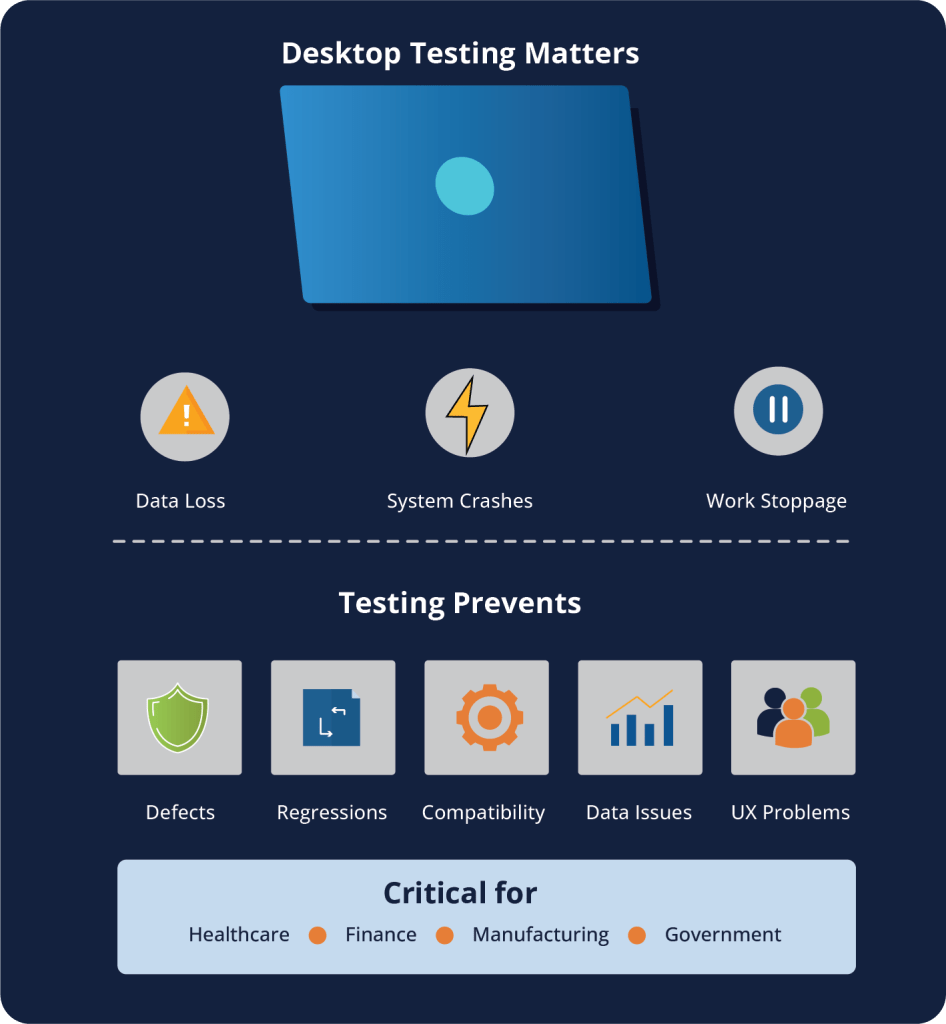
A single defect can snowball into lost productivity, data integrity issues, or compliance violations. Hence, desktop testing serves as the last line of defense between a flawed release and a massive operational breakdown.
At a high level, desktop tests:
- Detect functional and logic errors before they reach real users
- Validate stability under real-world conditions
- Prevent regressions as features evolve and new patches are released
- Ensure usability for long, continuous sessions
- Identify compatibility issues across OS versions, updates, and configurations
These tests are especially important for apps serving healthcare, finance, manufacturing, and government, where desktop systems remain in common use.
What Desktop Testing Covers: OS Behavior, UI Complexity, and Long-Run Stability
For most QA teams, desktop application testing will feel heavier than others, and for good reason. These apps run much closer to the operating system, hardware, and local environment. That means exposure to a whole class of risks that don’t exist for browser or mobile apps.
Deep Operating System Integration
QA teams must validate behavior across system-level dependencies, such as:
- File paths and directory structures
- Local storage and caching mechanisms
- Printers, scanners, and peripheral devices
- Hardware acceleration and drivers
- User permissions and access controls
This is tricky; not all defects originate in the application’s source code.
A test can fail because:
- A Windows or macOS update modified a system API
- A required driver is missing or redundant
- A user’s folder path contains special characters
- Regional or language settings change parsing logic
These are issues that web-only QA teams often don’t encounter. Desktop app testing is unique in this regard.
Harder to Automate UI Behavior
In web testing, most elements work within a DOM, with relatively stable selectors. Desktop UIs, however, often:
- Use custom or proprietary UI components
- Render elements dynamically
- Expose inconsistent or unstable locators
- Behave differently across OS versions and resolutions
As a result, desktop testers simply cannot automate everything in their suites. They also have to select the right desktop automation tool and testing framework matters for the job…generic products don’t cover these bases.
Long-Running Usage and Session Stability
Desktop applications are often used for hours at a time….sometimes entire workdays.
To match this, desktop testing must include scenarios that don’t show up in web testing, including:
- Memory leaks and resource exhaustion
- Gradual performance degradation
- Background processes
- Crashes after prolonged usage
- Stability under sustained user/activity load
These issues don’t come up in quick smoke tests. Happy path interactions are not enough. QA only finds them when the application is tested in real user conditions: continuously, under pressure, with multiple tasks open at once.
Manual Desktop Testing vs. Automated Desktop Testing
| Dimension | Manual Desktop Testing | Automated Desktop Testing |
|---|---|---|
| Primary Value | Behavioral discovery, UX validation, environmental sensitivity | Regression protection, deterministic verification |
| Failure Signal Quality | High (human interpretation of intent vs behavior) | Medium (often confounded by tool or locator issues) |
| Sensitivity to UI Refactors | Low | High unless abstraction layers exist |
| OS-Level Interaction Coverage | Strong (system dialogs, permissions, drivers, hardware events) | Limited and tool-dependent |
| Stateful Workflow Testing | Natural | Requires explicit state modeling |
| Long-Run Stability Validation | Inconsistent | Deterministic and repeatable |
| Scalability | Linear with headcount | Exponential once stable |
| Test Execution Determinism | Low | High |
| Maintenance Surface Area | Human knowledge | Framework + locator + environment |
| Primary Risk | Human inconsistency | Flakiness and false positives |
Step-by-Step Process for Desktop Application Testing
Desktop application testing works best when pursuing a structured, risk-aware process. Unlike lightweight web apps, ad-hoc testing does not scale for desktop software.
Understand the Usage Model
Start by understanding how the application is actually used.
At a high level, map out:
- Primary user roles and permissions
- Typical session length
- Data volume
- File sizes
- Online vs offline usage
- Hardware and peripheral dependencies
A desktop accounting tool used for eight hours a day will have different testing needs than an app launched twice a day.
Identify Risk Areas
Identify risk zones early and design test coverage around them. These zones would be:
- File handling
- Local storage
- Installation and upgrades
- OS-specific behavior
- Background services
- Memory and CPU usage
- Crash recovery
- Data persistence
- Permission boundaries
When it comes to desktop testing, system-level failures are just as important as feature-level failures.
Design Test Cases Around Workflows, Not Screens
Shape desktop test cases to be workflow-centric rather than UI-centric.
For example, instead of testing this flow:
“Click button A → verify modal → click save”
consider testing this:
“User imports a 500MB file → edits records → loses network → resumes → exports → reopens → verifies data integrity”
Design test cases to:
- Focus on real user goals
- Cross multiple screens and states
- Include interruption and recovery
- Validate data, not just UI
Define What to Automate (and What Not to)
As a general rule, automate only specific test cases that deal with:
- Stable, business-critical workflows
- High-frequency regression paths
- Data-heavy operations
- Configuration permutations
Efficiency and productivity will almost always take a hit if QA teams automate:
- Rapidly changing UIs
- Visual-heavy flows
- Hardware-dependent steps
- Rare edge cases
Think of this as a high-level practice to avoid brittle test suites that collapse under minor UI changes.
Select the Right Automation Strategy
Desktop automation success depends heavily on the automation testing tool in use. Test strategies must be connected with the app’s architecture.
Common test approaches include:
- Script-based frameworks: offer precision and control
- Keyword-driven frameworks: for readability and reuse
- No-code testing tools: for broader team collaboration
The exact approach will depend on the app and testing team in question. Regardless of the approach, the framework should support:
- Stable element identification
- OS-level interaction handling
- Logging and diagnostics
- Retry and synchronization logic
- Parallel execution
Build Environment-Aware Test Coverage
Desktop apps behave differently across environments. So, they need to be tested across OS versions, user permission levels, hardware configurations, screen resolutions, language, and locale settings.
Testing in real user conditions is non-negotiable for any QA pipeline.
Validate Long-Session Stability
Desktop apps often degrade with usage. So, test suites must cover:
- Extended runtime tests
- Repeated heavy operations
- Background process monitoring
- Memory and resource tracking
- Crash and recovery simulations
Integrate Regression Testing Into Release Cycles
Build in relevant quality guardrails with:
- Automated smoke tests on every build
- Scheduled full regression runs
- Manual exploratory passes on major changes
- Targeted risk-based testing for hotfixes
Do not skip these layers for faster releases. A bug-heavy app released on time means nothing but trouble.
Continuously Refine Coverage
Desktop testing is never complete. As apps evolve, many desktop test cases become obsolete. Newer bugs appear, and old logic becomes useless.
QA teams have to regularly prune, refactor, and redesign their test suites to keep up.
Desktop Testing Best Practices
Desktop testing covers both UI and system validation. Due to close dependencies on the OS, local storage, background services, and hardware, these apps are more fragile, more stateful, and harder to recover from crashes and breaks.
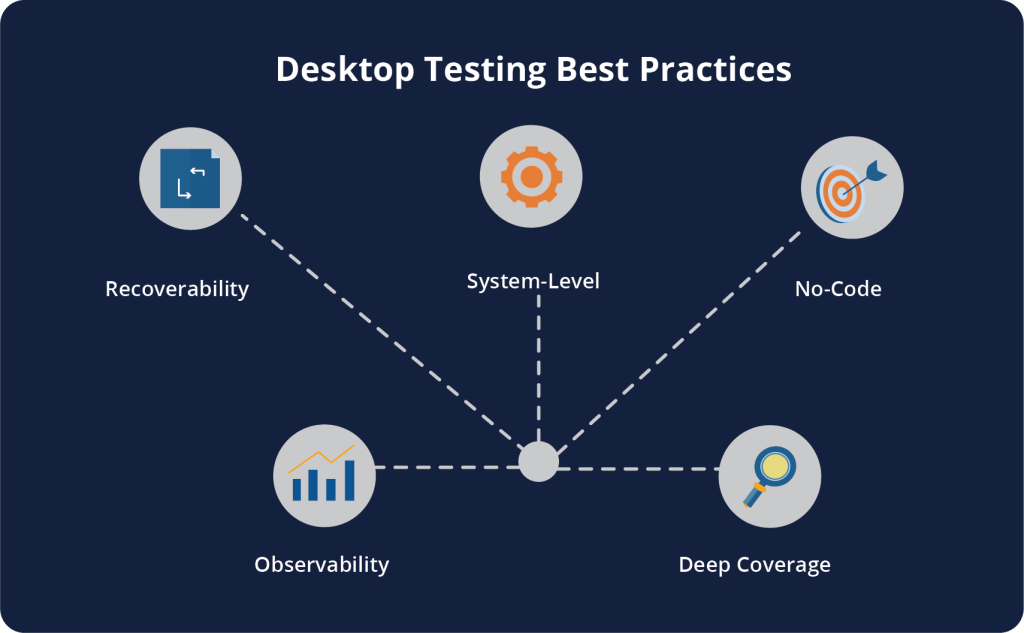
Test for Recoverability + Correctness
When used in the real world, desktop apps are interrupted by power loss, forced shutdowns, OS crashes, and accidental breakage. So, the tests should validate:
Desktop testing should explicitly validate:
- Auto-save mechanisms
- Crash recovery workflows
- Partial transaction rollbacks
- File integrity after failure
- Resume-from-last-state behavior
Your desktop app has to recover gracefully from failure, while also excelling at happy-path interactions.
Validate System-Level Side Effects
Desktop app testing needs to take care of any persistent changes made at the system layer. For example, file system changes, temporary file cleanup, local cache behavior, registry or configuration writes, and background service activity.
It is essential to go beyond just the visible UI output in test suites.
Use No-Code Testing
No-code testing is especially useful in UI-heavy and workflow-driven environments, such as those in which desktop apps tend to operate. This often includes:
- Visual workflows
- Drag-and-drop interactions
- Menu-heavy navigation
- Form-based data entry
- Cross-resolution UI validation
Instrument Desktop Tests for Observability
Desktop automation often fails for reasons completely unrelated to software defects. These issues can range from memory usage trends, CPU spikes, OS-level events, and disk I/O behavior. Tests should account for the same.
Deep Workflow Coverage Over Shallow UI Coverage
Once the UI is validated, expand the range of test coverage. Test cases must account for system state corruption, resource leaks, interrupted workflows, and persistence errors.
Focusing solely on UI tests will mostly ferret out cosmetic issues. Depth prevents disasters.
Picking the Right Desktop Testing Framework: A Practical Checklist
Choosing a desktop testing framework involves not only test creation and execution but also maintenance, reliability, and scalability.
Use this checklist to achieve the optimal balance.
1. Can It Handle OS-Level Realities?
Desktop apps work as well as their OS dependencies allow. So, your testing framework should be able to interact with native system dialogs, OS notifications, pop-ups, window focus changes, background services, and multi-user + multi-window workflows.
Any framework that cannot handle the above will return false fails or even false passes.
2. How Does It Identify UI Elements?
Does your chosen desktop testing framework:
- Support accessibility labels and semantic IDs?
- Fall back gracefully when locators change?
- Support hierarchical and relational selection?
- Survive layout refactors?
Stay away from frameworks that rely heavily on pixel positions or fragile hierarchies.
3. Does It Support Stateful Workflows?
Desktop apps are stateful by nature, and your framework should be able to facilitate:
- Long-running sessions
- Workflow continuity across screens
- Partial failure recovery
- Background tasks
- Async behavior
Tools offering stateless execution will pin you down with extra maintenance work, as you’ll have to keep writing brittle workarounds everywhere.
4. How Does It Handle Synchronization?
When watching demos or running free trials, look for:
- Built-in smart waits (not just sleep)
- Event-based synchronization
- UI readiness detection
- Background process awareness
Frameworks where QAs are expected to manually manage timing will collapse under scale.
5. What is the Debugging Experience?
QA can only debug effectively if they have an accurate and comprehensive context of the failure. Your chosen automation testing tool must, at a minimum, offer:
- Screenshots
- Video
- Structured logs
- Stack traces
- OS-level events
- Resource usage data
6. Does It Support Environment Variability?
Desktop apps behave differently across machines, and your testing tool should extend across all of them. Bare minimum would include:
- OS version targeting
- Permission profiles
- Locale and language switching
- Hardware configuration simulation
- Parallel environment execution
7. How Steep Is the Learning Curve?
Ask:
- Can non-developers contribute?
- Are tests readable?
- Can new hires onboard quickly?
- Is the test intent obvious?
This is where no-code and low-code tools shine, especially for UI-heavy desktop workflows. It opens up testing to people who know the product and users, but may not have technical training.
8. How Does it Handle Test Maintenance?
As your app scales, maintenance will often take on more effort and resources than actual testing. To keep it as minimal and possible, evaluate:
- Abstraction support
- Reusable components
- Locator centralization
- Page/screen object models
- Dependency isolation
Bottomline: Small UI changes should not require mass edits.
9. Can It Integrate With Your Delivery Pipeline?
Desktop testing frameworks should:
- Run heedlessly or unattended
- Integrate with CI/CD
- Support scheduled runs
- Produce machine-readable reports
- Gate releases
No automation = no scale.
FAQs for Desktop Testing
1. What is desktop testing?
Desktop testing is the process of validating software applications running directly within an operating system like Windows, macOS, or Linux. Desktop testing covers functionality, usability, performance, stability, OS-level interactions, and long-session behavior to check if the application works reliably in real-world conditions.
2. How is desktop testing different from web or mobile testing?
Desktop applications interact directly with the operating system, local file systems, hardware devices, and background processes. Also, desktop apps are often stateful, run for long sessions, and must handle OS updates, permissions, and system-level failures. All of this makes desktop testing more environment-sensitive, requiring different strategies for test creation and execution.
3. What types of applications require desktop testing?
Desktop testing is required (mandatory) for business-critical applications that are used continuously. These include:
- Accounting and finance tools
- Healthcare and clinical systems
- Design and engineering software
- Enterprise ERP and CRM clients
- Point-of-sale (POS) systems
- Internal business utilities
4. What should be covered in desktop application testing?
Desktop application testing should cover:
- Functional workflows
- OS-level interactions
- File system behavior
- Installation and upgrades
- Performance over long sessions
- Crash recovery
- Data persistence
- Permission handling
- UI and accessibility
- Cross-OS compatibility
Bear in mind that testing only the UI is not enough. Desktop apps also need system-level validation.
5. Can desktop testing be automated?
Yes, desktop testing can be automated using the right automation tools and testing frameworks. Automation tactics work best to streamline and speed up regression tests, smoke tests, and stable workflows. However, desktop scenarios like exploratory testing, UX validation, and OS-specific edge cases are best handled by manual testing.
6. What is the role of manual testing in desktop testing?
Manual testing is key to desktop testing. Human eyes and judgment have no substitute when it comes to uncovering usability issues, visual defects, workflow confusion, and environment-specific problems. Automation does not work well for exploratory testing, accessibility checks, and new feature validation.
7. What are common challenges in desktop testing?
Desktop testing teams often encounter the following challenges in their execution pipeline:
- Hard to automate UI elements
- OS-dependent behavior
- Flaky automation due to synchronization issues
- Long-session stability problems
- Environment drift after OS updates
- Hardware and driver dependencies
8. What is no-code testing, and how does it apply to desktop testing?
No-code testing enables QAs to build automated tests using visual flows and configuration instead of writing code from scratch. In desktop testing, no-code tools help automate UI-heavy workflows, form-based interactions, and visual validations.
9. What are desktop testing best practices?
A few desktop testing best practices that successful QA teams tend to implement would be:
- Testing recovery paths, not just happy paths
- Validating system-level side effects
- Designing tests for app durability in long sessions
- Prioritizing stability over surface coverage
- Handling OS updates as a testing risk
- Avoiding brittle UI locators
- Balancing manual and automated testing
10. What should I look for in a desktop testing framework?
At the very least, a good desktop testing framework should support:
- OS-level interactions
- Stable UI element identification
- Stateful workflows
- Smart synchronization
- Detailed debugging artifacts
- Environment variability
- CI/CD integration
- Hybrid testing (manual + automation + no-code)